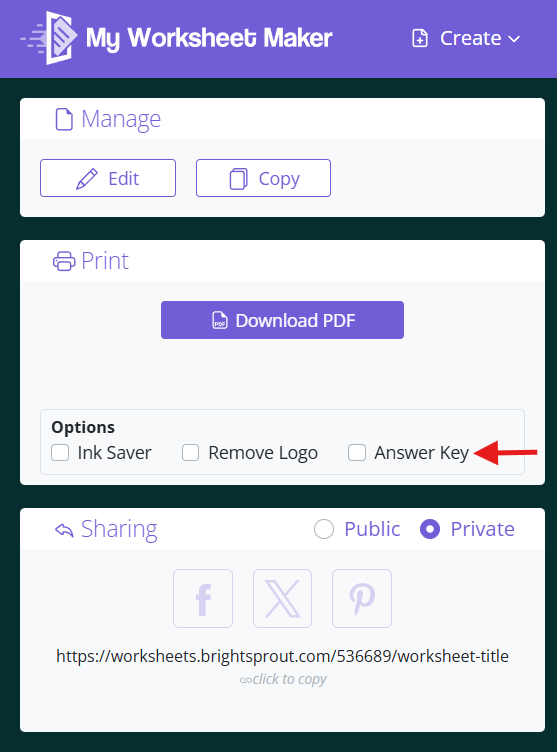

When sharing worksheets with students, you'll want to make sure the answer key is hidden. Here's how:
Publish your worksheet. After creating your worksheet, click 'Finish + Print'. If you do not have a subscription, you will be prompted to choose a subscription plan, purchase an individual worksheet, or continue with the free plan. Then follow the prompts to make it printable.
Turn the Answer Key off. Once your worksheet is published, you will see options to print, to remove the logo, and to turn on and off the answer key. Click the Answer Key toggle switch in the Print Options menu to hide answers while printing.
Download or print. You can either:
Download as a PDF to email to students, upload to a classroom portal, or send to a printer.
Print paper copies directly — ideal for traditional classrooms, workplaces, and homeschooling. You can also select options like our ink saver.
Note: We don't recommend sharing your worksheet's custom link with students directly, as the answer key will be visible